Connect Claude to Gmail Safely: 3 Routes for Business
There are three ways to connect Claude to Gmail, and each gives you a different Claude Gmail integration. The simplest, in our view, is Claude’s built-in Gmail connector, which you switch on from your connector settings. The second is Google’s own Gmail MCP server, which Google runs as a Developer Preview and which needs a Google Cloud project. The third is a community-built Gmail server, where you have to judge the author yourself. This guide compares all three and ends with a checklist for letting an AI assistant read Gmail safely.
This is general information, not security advice. The facts below come from Anthropic’s Gmail connector page and Google’s Gmail MCP setup guide, plus the other official pages linked below, all read on 10 November 2026. We have not connected these tools ourselves, so our suggestions are cautious defaults, not proven results. We have no affiliation with Anthropic or Google. Where a page does not say something, we say “not stated” instead of guessing.
Key Takeaways
- In our view, Claude’s built-in connector is the easiest route. Two official Anthropic pages disagree about whether it can send email, so check what your own connector screen offers.
- Google’s official Gmail MCP server has 10 tools. It can read, draft and label email. It has no send tool and no delete tool.
- Google’s server is a Developer Preview. It needs program membership, a Google Cloud project and an OAuth client, so it is not a one-click setup.
- Google warns that emails can contain hidden instructions. Don’t ask an assistant to process mail from senders you don’t trust, and review every action.
Which Route Fits You?
Pick by how much setup you can handle and how much you want the assistant to do. The table sorts the routes by what the official pages say.
| Route | What you do | What to watch |
|---|---|---|
| Claude’s built-in Gmail connector | Connect from Customize, then Connectors, and sign in to Google | Two Anthropic pages disagree on whether it can send. Team and Enterprise need an Owner to enable it |
| Google’s official Gmail MCP server | Join the Developer Preview, enable two APIs, set up an OAuth client, add it to Claude as a custom connector | Developer Preview terms. It can read, draft and label, with no send or delete tool in Google’s list |
| Community Gmail server | Install or connect software someone else wrote | Google’s pages don’t cover these. Who wrote it, what it asks for and where your email goes are yours to judge |
If you are new to the idea, our guide to MCP servers for small business explains what an MCP server is, and our list of the best MCP servers for small business puts this one in context. If you are weighing MCP against plain automation, read our comparison of MCP, APIs, Zapier and n8n.
Route 1: Claude’s Built-In Gmail Connector
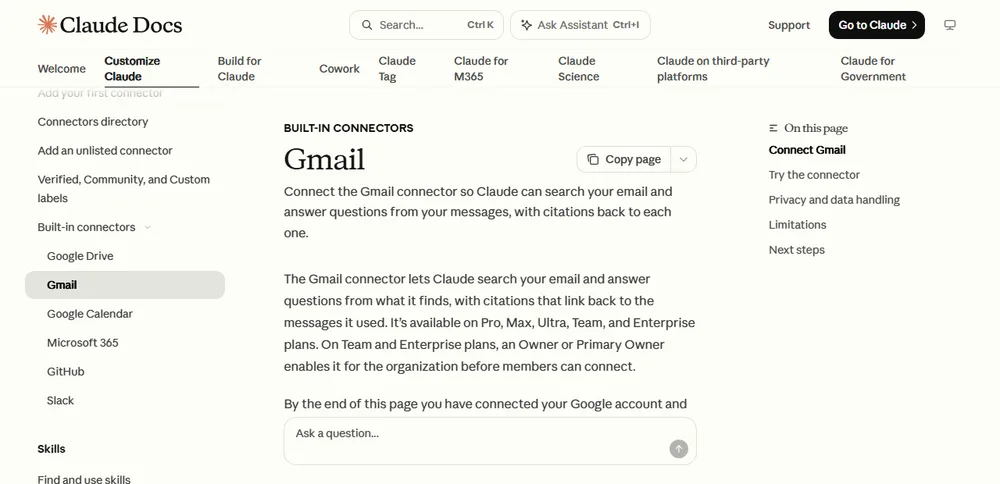
In our view, this is the route most owners should look at first. You connect once from your settings, then turn Gmail on in any conversation where you want it. Anthropic’s steps: go to Customize, then Connectors in claude.ai, find Gmail, select Connect, sign in to your Google account and grant the requested permissions. When it works, the Connect button changes to Disconnect.
On Team and Enterprise plans, Anthropic says an Owner or Primary Owner must enable Gmail for the organization before members can connect. If your Google Workspace admin has blocked outside apps, Anthropic’s Help Center says the admin may need to mark Claude as a trusted app under Security, then Access and data control, then API controls, then Manage third-party app access.
Two Anthropic Pages Disagree
We read two official Anthropic pages on 10 November 2026, and they describe the connector differently:
| Gmail connector page on claude.com | Claude Help Center article on Google Workspace connectors | |
|---|---|---|
| Can it send email? | No. The page says the connector is read-only and “can’t create, send, or modify emails” | Yes. It lists drafting, plus sending, replying to and forwarding email, with your approval asked by default |
| Which plans? | Pro, Max, Ultra, Team and Enterprise | “all users on Claude and Claude Desktop” |
The claude.com page’s metadata shows it was last modified on 30 October 2026. The Help Center article shows no date. We can’t tell from the pages which is current, so we won’t tell you which is right. Check it yourself: after you connect, look at the Gmail entry under Customize, then Connectors, and see which tools it lists. Ask Claude to draft a reply to a test message before you trust it with anything real.
What the Help Center Says About Limits and Approval
Some points don’t depend on which page is current:
- The connector only reaches the Google account you connected, and Anthropic says your existing Gmail permissions apply.
- Claude can’t see images embedded in emails, and the Help Center says attachment content isn’t accessible, only attachment metadata.
- On the Help Center’s version, each send, reply or forward needs your approval by default. On Team and Enterprise, the Help Center says owners decide whether members can allow these actions without asking each time.
- Rate limits follow Google’s API quotas, and the Help Center says performance may vary for large mailboxes.
Anthropic’s Help Center also says it doesn’t train its models on your Gmail, Drive or Calendar connector data. It adds one condition: if you use a consumer plan and allowed your chats to be used for training, then content you copy and paste from those connectors, or Claude responses that include specific information from them, may be used to improve its models.
Anthropic’s Claude for Small Business lists Google Workspace among its supported tools. Our guide to Claude Cowork for small business explains how that package works, what it costs and what to check before you connect. If you plan to use Gmail inside Cowork, our owner checklist for Claude Cowork safety lists what to approve and refuse.
Route 2: Google’s Official Gmail MCP Server
Google runs its own Gmail MCP server. That makes it the “official” route in the sense of who built it. It is also more work, and Google marks it as a Developer Preview.
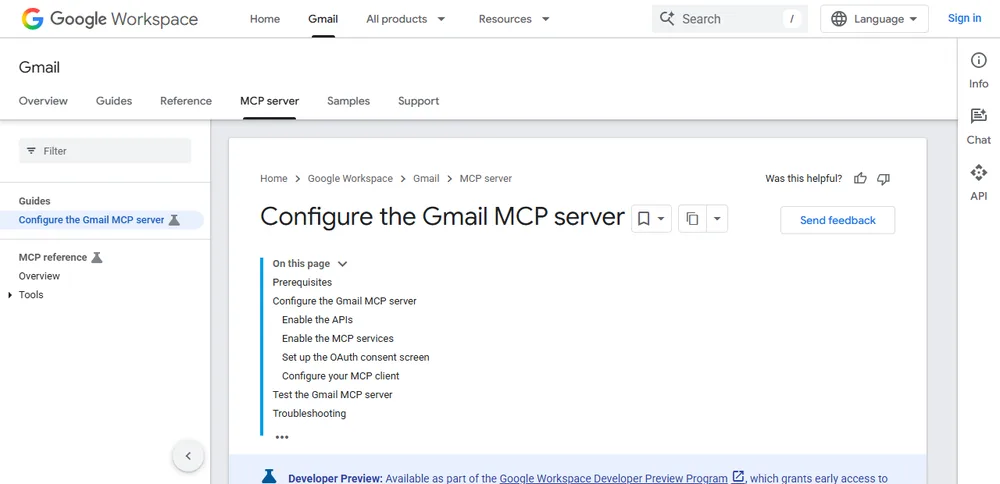
Gmail MCP Server Setup
Google’s setup guide lists these prerequisites:
- Membership in the Google Workspace Developer Preview Program.
- A Google Cloud project.
- An MCP host, such as Google Antigravity, or Claude as a custom connector.
- The gcloud command line tool for the commands on the page.
The steps in Google’s guide are: enable the Gmail API and the Gmail MCP API in your Cloud project, configure the OAuth consent screen, add the scopes gmail.readonly and gmail.compose, and create an OAuth client. For use with Claude, Google’s page says you must have a Claude Enterprise, Pro, Max or Team plan. You create a web application OAuth client with the redirect address https://claude.ai/api/mcp/auth_callback, tick Use this client for an AI-powered agent, then add a custom connector in Claude with the server URL https://gmailmcp.googleapis.com/mcp/v1 and your client ID and secret.
What Google’s Gmail MCP Server Can and Can’t Do
Google’s reference page lists 10 tools: create_draft, get_message, get_thread, label_message, label_thread, list_drafts, list_labels, search_threads, unlabel_message and unlabel_thread. The scopes are read-only access plus compose access. There is no send tool and no delete tool in the list. (Google’s guide also says MCP hosts with access to powerful tools and APIs “can read, modify, and delete data in your Google Account”. We read that as general wording about hosts, not as a tool on this list, but it is a reason to keep approvals on.) Google’s own test example makes the point: asked to “draft an email… saying that I approve the marketing plan”, the client creates a draft in your drafts folder, which “lets you review and send it from Gmail”. (Google’s configure guide lists only nine of these tools and leaves out get_message. We follow the reference page.)
The Developer Preview catch
Google’s Developer Preview Program page matters for a business. The application asks for your Google Workspace account and Cloud project details. Google says processing takes “a couple of days”. We did not find a statement about personal Gmail accounts, so we can’t say whether they can join. Google’s program terms also say that for testing you may not give end users outside your own domain or company access to apps built on pre-release APIs, and that pre-release APIs are provided “AS IS”. Features usually stay in preview for three to six months, with exceptions. In our view, that makes this route a fit for a technical person testing inside one company, and not for something you hand to customers.
Route 3: Community Gmail Servers
Community Gmail servers are written by people other than Google or Anthropic. We did not review any, so we don’t recommend one by name.
Google’s warning is about which applications you connect to its own server: “Never connect Gmail MCP server to untrusted or unverified applications.” It says nothing about community servers, so the questions below are our suggestions, not Google’s. In our view they are the minimum to ask before you consider one:
- What permission scopes does it ask for? Read-only is safer than anything that can send or modify.
- Who maintains it, and when was it last updated?
- Where does it run, and where do your emails go while it works?
- Can you read its code, or does someone you trust review it?
- Can you remove its access in one step if something looks wrong?
In our view, if the answers aren’t clear, use Route 1. And if the tool you need has no server at all, our guide to creating an MCP server without coding covers the routes that don’t need a developer.
The Real Risk: Instructions Hidden in Email
Anyone can send you an email, so Google treats it as untrusted data. Its guide says that when you expose a language model to untrusted data, there is a risk of an indirect prompt injection attack, where hidden instructions in an email try to steer the assistant. Google’s three best practices for the Gmail server are:
- Only use trusted tools.
- Be cautious with untrusted inputs. Avoid asking your client to process emails from unverified sources, which “may contain hidden instructions that can hijack your session”.
- Review all actions. Check what the AI does on your behalf.
Google’s security page for Workspace MCP servers adds that you must screen prompts and responses for malicious content, using Google’s Model Armor or your own documented solution. It also warns that when Model Armor logging is on, it logs the entire payload, which may expose sensitive information in your logs. Its prerequisites are a Google Cloud project and an OAuth client, so in our view an owner using the built-in connector will mostly rely on approvals and judgment instead. For how hidden instructions play out with an AI agent, see our post on whether OpenClaw is safe for business.
A Safety Checklist for Owners
These steps combine the vendors’ advice with our own suggestions. Ours are marked. For the wider picture across tools, see our MCP security guide for small business.
- Start with a test inbox or a few sample emails, not your main business mailbox. (Our suggestion.)
- Choose the least capable route that does the job. If you only need search and summaries, read-only is enough. (Our suggestion.)
- Check what your connector can actually do on your own screen.
- Keep approvals on. Anthropic’s Help Center says Claude asks before sending by default. In our view, don’t switch that off for convenience.
- Read every draft before you send it, including the recipient and any links. (Our suggestion.)
- Don’t ask Claude to act on messages from senders you don’t know. This is Google’s advice in plain terms.
- Use a trusted-app list if you run Google Workspace. The Help Center describes how an admin marks Claude as Trusted.
- Know how to switch it off (next section) before you need to. (Our suggestion.)
How to Disconnect Claude From Gmail
In Claude, go to Customize, then Connectors, open the Gmail connector and choose Disconnect. You can also, as Anthropic’s Help Center describes, open myaccount.google.com/connections, find the Claude connection and choose Delete all connections. If you added Google’s server as a custom connector, look for it in the same Connectors list. Google’s guide also notes that a Workspace administrator can review OAuth log events in the security investigation tool, which is useful if you want to see what connected.
Frequently Asked Questions
Can Claude send emails from my Gmail?
Google’s official Gmail MCP server can’t: it has no send tool, only drafts. For Claude’s built-in connector, Anthropic’s two pages disagree (see the table above), so check your own connector screen before you rely on it.
Can an AI assistant read my Gmail safely?
Only with care. Google says emails can carry hidden instructions, so keep approvals on, avoid asking the assistant to process mail from unknown senders and review every action. In our view, no route is risk-free. This is general information, not security advice.
Do I need Google Cloud to connect Claude to Gmail?
Not for the built-in connector, which asks you to sign in to Google and grant permissions. You need a Google Cloud project and Developer Preview membership for Google’s official MCP server.
Does Claude read my attachments?
Anthropic’s Help Center says attachment content isn’t directly accessible through Gmail, only attachment metadata. The claude.com page adds that Claude can’t see images embedded in emails.
Sources
- Anthropic, Gmail connector (page last modified 30 October 2026)
- Anthropic, Claude Help Center, Use Google Workspace connectors (no date shown)
- Google for Developers, Configure the Gmail MCP server (updated 5 November 2026) and MCP Reference: gmailmcp.googleapis.com (updated 21 July 2026)
- Google for Developers, Configure security for Google Workspace MCP servers and Google Workspace Developer Preview Program (updated 6 November 2026)
All retrieved 10 November 2026. Google’s server is a Developer Preview, so we plan to re-check these details by 10 December 2026.